Display Setup
How to Use a Stopwatch in Full-Screen Mode
Transform any computer, TV, or mobile device into an oversized mission clock readable from across the room.
When you are working out in a home garage gym, coaching athletes across a track, or managing time in a large university lecture hall, a small phone screen or standard browser window is impossible to read from distance.
A full screen stopwatch solves this problem by stripping away browser tabs, bookmarks, operating system taskbars, and menus, expanding the time readout to fill 100% of the display.
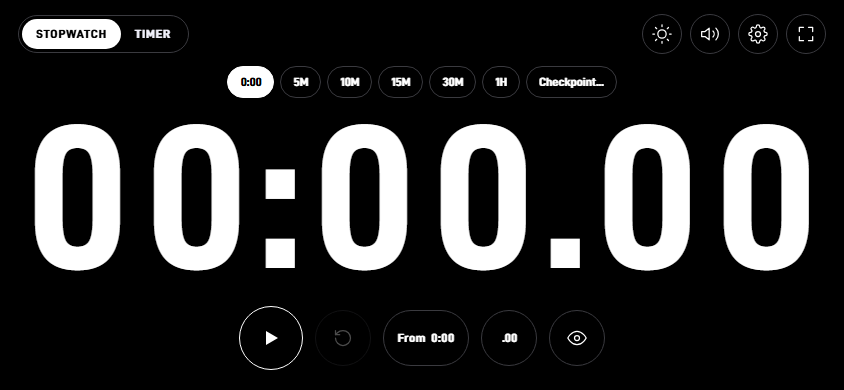
What Is a Full Screen Stopwatch?
A full screen stopwatch is a web-based clock interface that utilizes the HTML5 Fullscreen API (requestFullscreen) to occupy the entire physical monitor.
Instead of displaying a timer widget surrounded by navigation menus or sidebar advertisements, the digits themselves are the entire user interface. At 80px to 240px fluid font scale, you can clearly read hundredths of a second from 3 to 6 metres away.
How to Enter Full-Screen Mode Across Devices
On PC & Mac (Chrome, Edge, Firefox, Safari)
- Press F on your keyboard anywhere on the page.
- Or click the circular Fullscreen icon located in the bottom control bar or top right header.
- To exit full-screen mode, press Esc or F again.
On Android Phones & Tablets
- Tap the Fullscreen button in the control cluster. The Android navigation and URL address bar immediately slide out of view.
- Rotate your device to landscape for maximum numeral magnification.
On iPhone & iPad (iOS Safari)
- iOS Safari limits the standard Fullscreen API on iPhones. To achieve true borderless fullscreen on iOS, tap the Safari Share button and choose "Add to Home Screen".
- Launching Fullscreen Stopwatch from your Home Screen runs it in standalone web app mode with zero browser chrome!
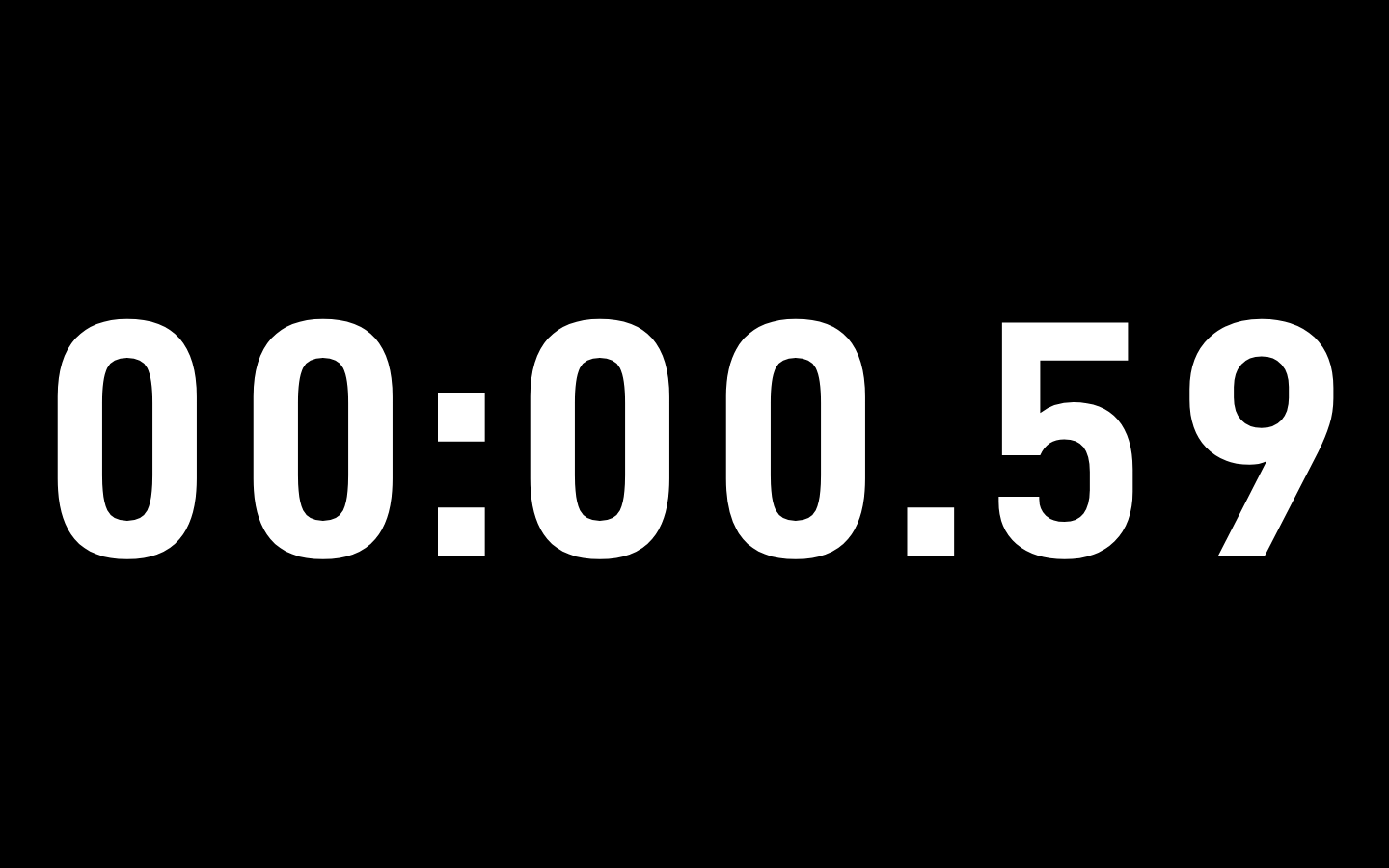
Zen Mode: Total Distraction Elimination
Even small play/pause buttons can distract an audience during a live presentation or draw focus away during meditation and sprint training.
Fullscreen Stopwatch features built-in Zen Mode:
- Auto-Fade: Once you start the stopwatch or stop moving your mouse, all control buttons smoothly fade away after 3 seconds.
- Instant Hotkey: Press H anytime to toggle Zen mode immediately.
- Wake on Hover or Tap: Moving your cursor or tapping anywhere on the screen brings the controls back immediately.
What Are the Core Features of Fullscreen Stopwatch?
- Dual Mode (Stopwatch & Countdown): Seamlessly switch between count-up elapsed time and count-down timer with audible alarm.
- Phosphor Display Themes: Select Signal White, P1 Green, P3 Amber, or P5 Dark-Adapted Red to match night lighting or cockpit aesthetics.
- Split Lap Drawer: Capture intermediate laps without interrupting the main count.
- Anti-Jitter Monospaced Slots: Digits remain locked in place with zero width shifting as hundredths spin.
- Offline Reliability: Caches locally so gym Wi-Fi dropouts never interrupt your session.
Frequently Asked Questions
What is a full screen stopwatch?
A full screen stopwatch is a web clock interface that uses the HTML5 Fullscreen API to occupy 100% of the display, removing browser tabs, address bars, and menus to maximize distance legibility.
How to use full screen stopwatch?
Press F on your keyboard or tap the Fullscreen button. On mobile devices, rotate to landscape. In Zen Mode, all UI buttons fade out after 3 seconds so only the clock numbers remain visible.
Can I use the stopwatch and timer in full-screen mode?
Yes. Both Stopwatch mode (count up) and Countdown Timer mode (count down with alarm) support edge-to-edge full screen display on PC, Mac, tablets, and phones.
How do I set a countdown timer online?
Switch to Timer mode (press T) and click any quick preset (1M, 3M, 5M, 10M, 30M), or click Custom to enter hours, minutes, and seconds. Press Space to start.
Can I pause, resume, and reset the countdown timer?
Yes. Pressing Space pauses and resumes countdown progress. Pressing R resets the clock back to your configured starting duration.
Will the online timer play an alarm when the countdown ends?
Yes. When the countdown reaches zero, an audible Web Audio synthesized alarm chime plays and a flashing visual TIME'S UP banner appears until you stop it.
Can I use the countdown timer for studying and exams?
Yes. Fullscreen Stopwatch is widely used in school classrooms, lecture halls, and home study desks for Pomodoro intervals and timed practice exams without phone distraction.
Does the online timer work on desktop and mobile?
Yes. It supports touch and keyboard inputs seamlessly across desktop monitors, laptops, iPads, tablets, and smartphones.
Can I use the timer without keeping the browser tab active?
Yes. Timestamps continue tracking accurately via wall-clock calculations (Date.now()) even if you minimize or switch tabs.
Explore More Guides
Fills the screen. Readable from six metres.